Share files with a supplier
GitM can create a supplier share link straight from the task pane — a private link that lets someone without a GitHub account (a supplier, manufacturer, or external reviewer) download specific files in a browser. Recipients never sign in to anything.
This is the same Supplier Exchange used by GitMCloud — GitM writes the share, GitMCloud serves the download. See Share files with suppliers for the GitMCloud side and recipient experience.
Prerequisites
- Your role is allowed to share under the repository's Sharing Policy. By default that is Engineer and above (Engineer, Manager, Administrator, Owner); an admin can narrow it in Settings → Team & Sharing → Sharing Policy. The Share button and menu item are hidden for roles that aren't allowed.
- Supplier Exchange has been set up for the account — an admin installed the GitMCloud Exchange app once in GitMCloud → Settings → Exchange. Without it, links generate but downloads will not work.
Which files you can share and the password/expiry rules below are governed by the same Sharing Policy (stored in
.gitm/exchange-config.json). See Settings reference.
Share a single file (right-click)
- In the Files tab, right-click a file → Share with Supplier...
- The Share with Supplier dialog opens with that file pre-selected.
- Fill in the optional fields (note, expiry, password) and click Generate Link.
- The link is shown and copied to your clipboard. Send it to your supplier.
Share several files at once
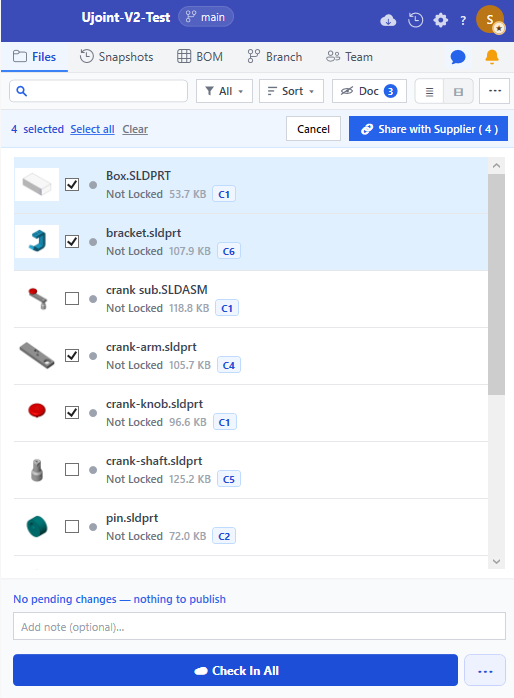
- In the Files tab, click the
 Share button on the toolbar (right of the
list/tree toggle).
Share button on the toolbar (right of the
list/tree toggle). - The file list switches to share-selection mode: a blue bar appears with N selected · Select all · Clear on the left and Cancel · Share with Supplier (N) on the right.
- Tick the checkbox on each file you want to share (or use Select all).
- Click Share with Supplier (N) to open the dialog with all selected files.
- Fill in note / expiry / password and click Generate Link.
While you are in share-selection mode the normal check-in checkboxes and the right-click menu are turned off, so you can't accidentally stage a check-in. Click Cancel to leave share mode.
The Share dialog
- Files to share — the selected files with their sizes.
- Note for supplier (optional) — a label the supplier sees (e.g. "Rev B chassis — please quote by June 20").
- Expiry — the choices and default come from the Sharing Policy. The dialog defaults to the policy's Default expiry and removes any option longer than the Maximum expiry cap (the No expiry option disappears when a cap is set).
- Password — optional unless the policy requires one, in which case it's mandatory before the link will generate.
- Generate Link — creates the share and shows the link with a Copy button.
Files you can't share
Any tracked file — source, derived export, document, image, or library reference part — can be shared, subject to the rules below.
| File state | Behaviour |
|---|---|
| Not locked | Shared normally. |
| Locked by you | Blocked — the checkbox is disabled and the menu item is greyed out. Check the file in first; suppliers can only receive committed versions. |
| Locked by someone else | Allowed, with a warning in the dialog that the supplier receives the last committed version, not any in-progress local changes. |
| Native SolidWorks file, when the policy disallows it | Blocked — when an admin turns off Allow sharing native SolidWorks files, source files are greyed out and excluded. Derived exports, documents, and images stay shareable, so you can hand over neutral formats without exposing the editable CAD. |
The rule is simple: you can't share what you haven't finished. A file you have checked out has local changes that aren't on GitHub yet, so sharing it would hand the supplier a stale version. Check it in, then share.
Manage your shares
Created shares appear in the Team tab under Supplier Share Links, with Copy and Revoke buttons and an expiry warning badge when a link is within 3 days of expiring. See Manage branches and team for the GitMCloud view, which is identical.
Expected result
- A share record is written to
.gitm/shares.jsonand pushed to GitHub. - The supplier link (
https://gitmcloud.gojain.com/#/exchange/<owner>/<repo>/s/<id>) opens the download page for the shared files. - Every download is logged to
.gitm/share-log.jsonl.
Troubleshooting
| Symptom | Cause | Fix |
|---|---|---|
| No Share button or menu item | Your role isn't allowed to share under the Sharing Policy, or permissions are still loading. | Confirm your role is in the policy's allowed roles; wait a second after the file list loads. |
| Link opens the GitMCloud wizard, not the download page | Old GitM build with the wrong link format, or the link was mis-copied. | Update GitM; regenerate the link. |
| Supplier sees "Supplier exchange is not active" | The Exchange app isn't installed for the account, or doesn't cover this repo. | An admin installs it in GitMCloud → Settings → Exchange and grants access to this repository. |
| Share with Supplier... greyed out for a file | The file is locked by you. | Check it in first. |
Known limitations
- Sharing always serves the last committed version on the current branch — never local, uncommitted changes.
- The download page is provided by GitMCloud; GitM only writes the share record. The two must
be on compatible versions (the
.gitm/shares.jsonschema is a shared contract). - Anyone with a share link can attempt to open it; add a password for sensitive files.